By default, when you rotate a bitmap, etc. in After Effects that has a drop shadow, the drop shadow will “stick” to the object and cast its shadow in the same direction as the rotation of the object. This is dumb!
(Shape layers don’t do this, fortunately.)
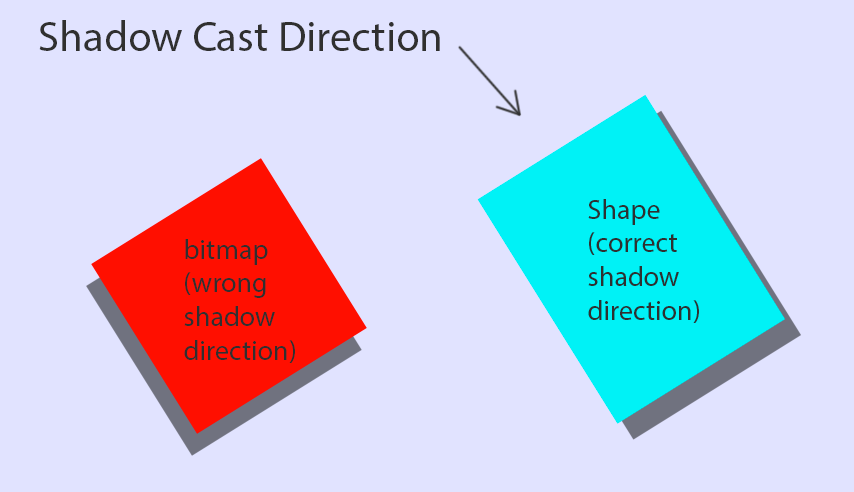
Let’s give bitmaps, etc. the Shape advantage!
What you’ve just done is told the drop shadow’s rotation to equal the opposite of the object’s current rotation.
 )
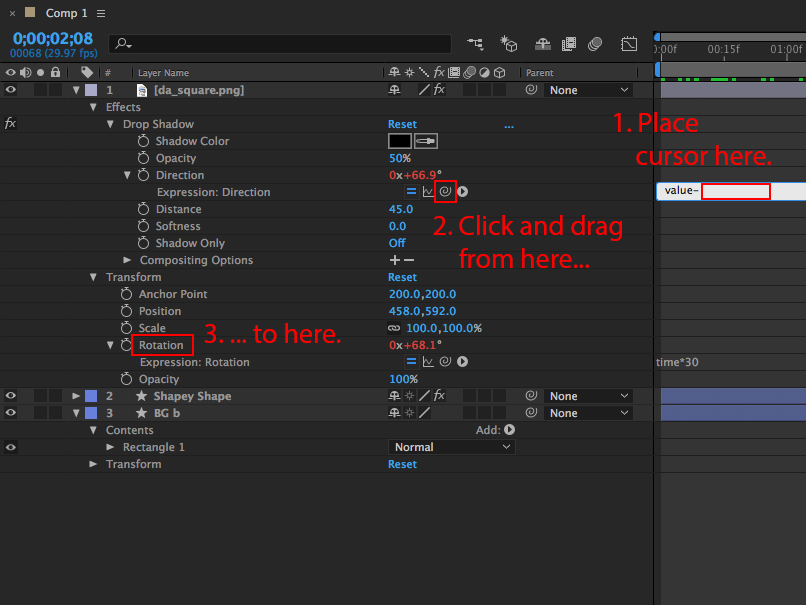
)For step #5, you can set the expression by picking the target using the Pick Whip tool. See screenshot below.